Manage your notification preferences
Choose which Roundtable activity sends you email or text notifications, for all your spaces or one space at a time.
Update your notification settings
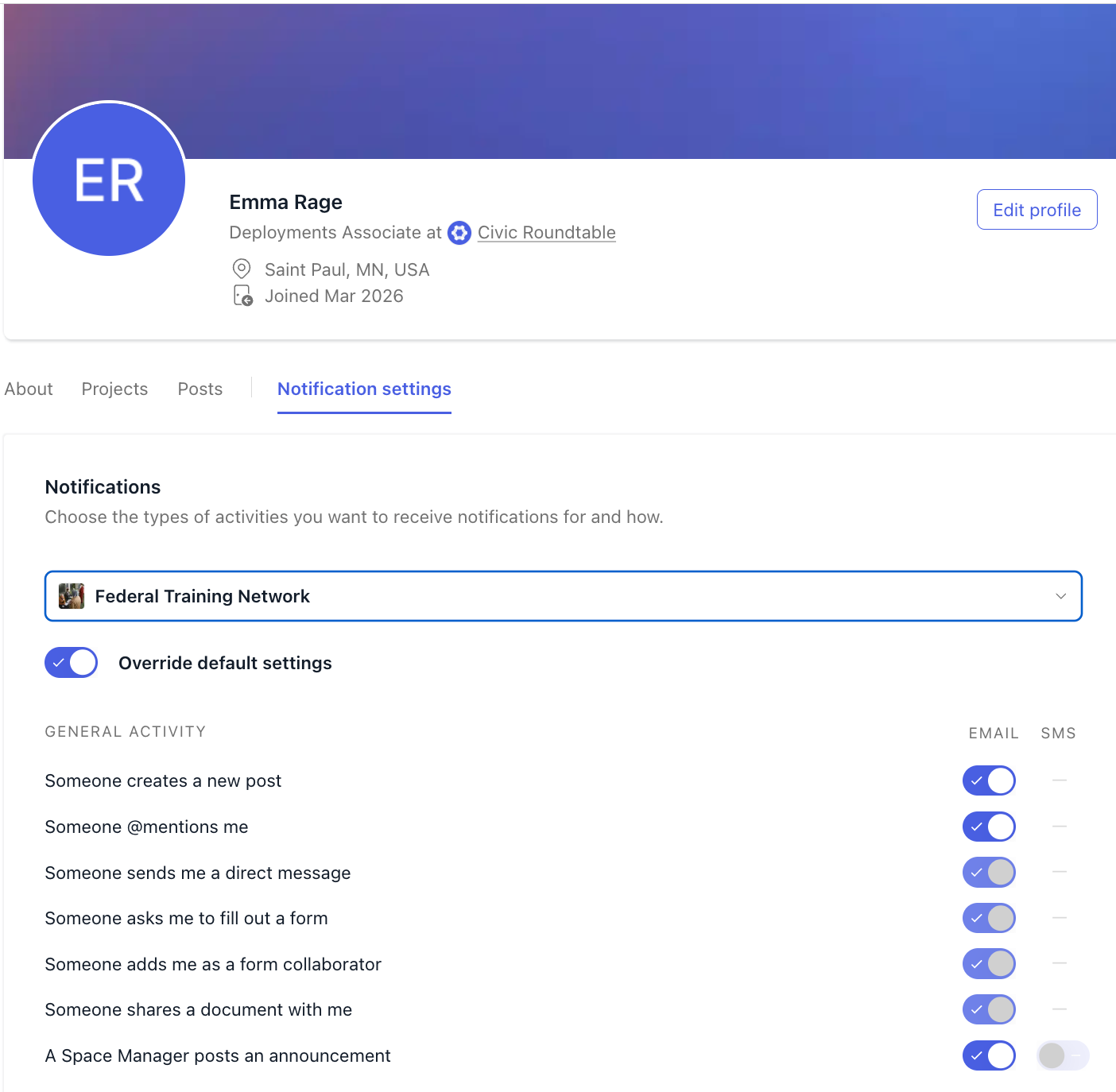
To open your notification settings, click your profile picture and select Manage account, then Notifications. You can also select My profile and click the Notification settings tab. Changes save automatically.

Email notifications
You can turn email notifications on or off for each type of activity below.
| Notification | Description |
|---|---|
| Someone creates a new post | A new post is published in a space you belong to |
| Someone @mentions me | Someone @mentions you in a post or comment |
| Someone sends me a direct message | Someone sends you a direct message, or reacts to one you sent |
| Someone asks me to fill out a form | Someone asks you to fill out a form |
| Someone adds me as a form collaborator | Someone adds you as a collaborator on a form |
| Someone shares a document with me | Someone shares a Roundtable document with you |
| A Space Manager posts an announcement | A Space Manager posts an announcement (email or SMS) |
| Someone comments on my post (or a post I’m subscribed to) | Someone comments on a post you created or are subscribed to |
| Someone responds to my poll | Someone responds to a poll you created |
| Someone responds to my form | Someone submits a response to a form you created |
| Someone reacts to my content | Someone reacts to a post, comment, or message you wrote |
| Daily Roundups | An email every morning summarizing the past day in all your spaces |
| Weekly Roundups | An email every Monday summarizing the past week in all your spaces |
You can reply to post, comment, and direct message notification emails to respond without opening Roundtable. See Interacting with Roundtable via email.
Email notifications are sent from the address notifications@civicroundtable.com. Links in Roundtable emails and texts point to c.civicroundtable.com, so if your agency filters external mail, ask IT to allow both.
What's in a notification email
Notification emails for posts and comments include the details, so you don't always need to open Roundtable:
- Links to any files attached to the post or comment, with a file type icon
- The poll question and its answer options, for posts with a poll
- The event details, for event posts
Per-space notification preferences
You can set your email notification preferences separately for each space you belong to. If you want one space to email you about everything and another to email you only about announcements, you can do that.
Your existing preferences carry over as the starting point for every space, so nothing changes until you decide to change it.
To set preferences for a specific space:
- Open your notification settings.
- Select the space from the dropdown at the top. The dropdown only appears if you're in more than one space.
- Turn on Override default settings.
- Turn the email toggles on or off for that space.
Direct messages, forms, shared documents, and the daily and weekly roundups always follow your default settings.
SMS notifications
You can enable or disable SMS notifications for Announcements, which are important, time-sensitive updates shared by Space Managers. These may include deadlines, emergency alerts, event reminders, and other time-sensitive information.
SMS notifications for announcements are off until you turn them on. To turn them on:
- Click your profile picture in the top right corner and select Manage account.
- Add and verify your phone number.
- Click Notifications.
- Turn on the SMS toggle for A Space Manager posts an announcement.
You'll get a text only when a Space Manager chooses to send an announcement by SMS and you have SMS turned on.
In-app notifications
In-app notifications show much of the same detail as emails:
- New posts and announcements show a short preview.
- Notifications flag when attachments are included.
- Event posts show the event details.
- If you belong to more than one space, each notification shows which space it came from.
Post notification subscriptions
You can subscribe or unsubscribe to notifications for each post. As a subscriber, you get notifications for new comments on that post. You're subscribed automatically to posts you create or comment on. To change it, open the More actions menu on the post and select Subscribe to notifications or Unsubscribe from notifications.