Connecting Roundtable to Microsoft Teams
Integrate with Microsoft Teams to receive notifications about activity in your spaces directly in Teams. This integration ensures that you stay informed about discussions and announcements without having to leave your Teams workplace.
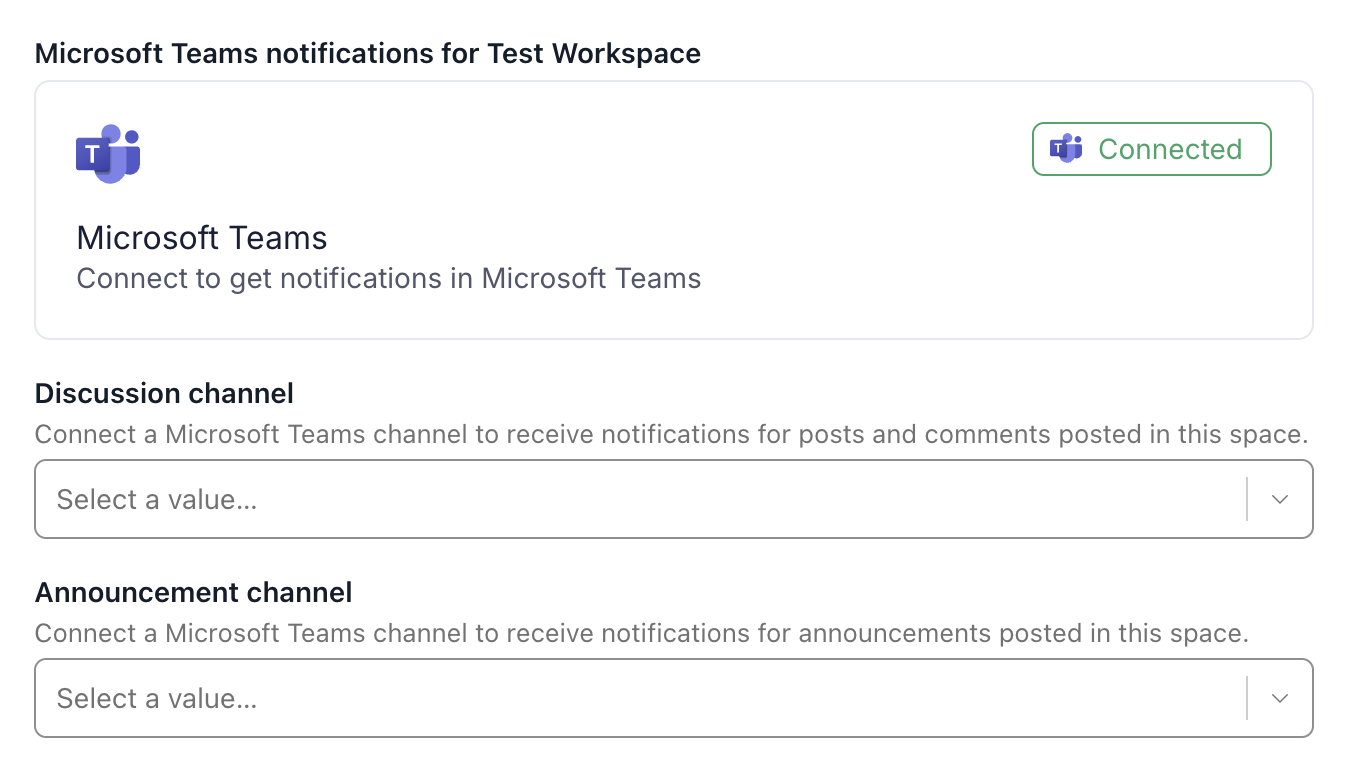
How to setup Microsoft Teams notifications
1. Connect Microsoft Teams
- Navigate to Admin -> Integrations -> Microsoft Teams notifications section in your Space
- Click the Connect button.
- Follow the prompts to authorize Civic Roundtable to send notifications to your Teams workspace.
- Once connected, the status will update to Connected.
2. Choose Notification Channels
After connecting Roundtable to Microsoft Teams, you can specify which public Teams channels should receive notifications from Roundtable activity:
Discussion notifications
- Select a Teams channel from the dropdown under Discussion channel.
- This will send notifications for posts and comments in your space to the selected channel.
- Note that comments will frequently appear as threaded messages on the original "new post" Teams message
Announcement notifications
- Select a Teams channel under Announcement channel.
- This will send notifications for announcements posted in your space.
Roundtable does not currently support sending notifications to private Microsoft Teams channels. If this is something you are interested in, please reach out.
The Roundtable for Microsoft Teams integration is subject to the Roundtable Privacy policy.