AI Answers
AI Answers lets you ask questions in plain language and get direct answers drawn from the Roundtable content you can access, across all your spaces, plus any websites your Space Managers have connected.
What content does AI Answers use?
AI Answers draws from the content you already have access to in Roundtable:
- Discussions — posts and comments
- Events — details about past and upcoming events
- Resources — uploaded files, including audio transcripts and text extracted from images, and transcripts of recorded Roundtable Video Meetings with speaker attribution. Archived resources aren't used.
- Documents — Roundtable documents you can access
- Forms: the title, description, owner, and status of published forms shared with you or that you collaborate on. Public forms shared with Anyone with the link aren't included, and AI Answers doesn't see form responses.
- Connected websites — publicly accessible external sites your Space Managers have chosen to connect
AI Answers does not browse the open internet. It searches your Roundtable content plus the specific external websites your space has deliberately connected — nothing else. When an answer draws on a connected website, the citation shows you which site it came from.
RT Tip: The Roundtable Help Center is a connected website on all live spaces, so you can ask product questions like "how do I schedule a post?" and get a link to the help article. If you get a product answer when you wanted your space's answer, add context like "in this space" to your question.
See Connected Websites for how sites get connected and who can do it.
How is AI Answers different from keyword search?
Keyword search asks you to think of the right terms, then hands you a list of results to sort through.
AI Answers works more like asking a knowledgeable colleague who's read everything in your space.
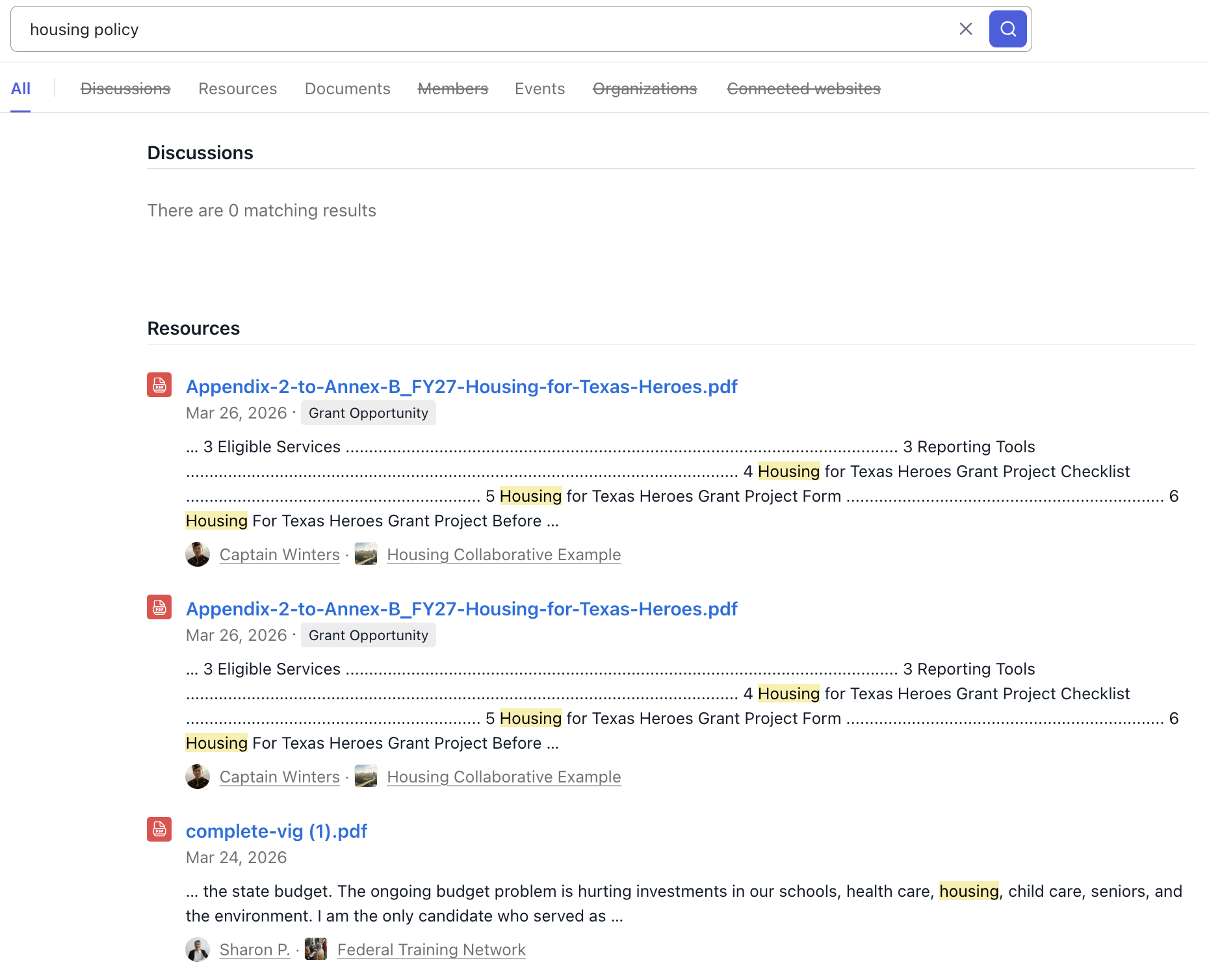
Keyword Search
"Housing policy" → Documents to review
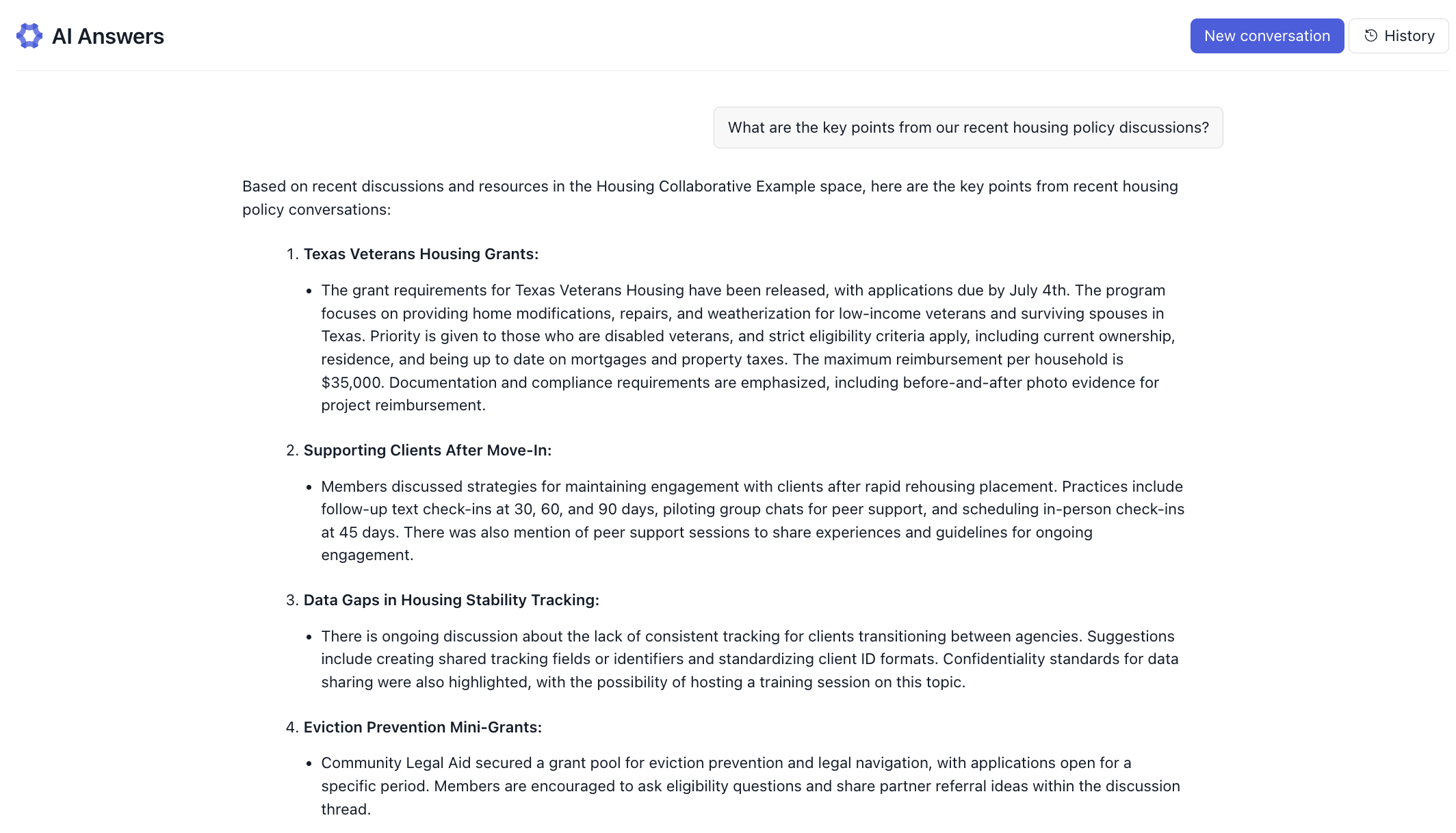
AI Answers
"What are the key points from our recent housing policy discussions?" → a direct summary
RT Tip: AI Answers is especially useful when you're not sure of the exact terms to search for, or when the answer spans multiple conversations or documents.
Is it personalized?
Yes. AI Answers tailors responses using context from your profile — like your role, organization, and location — so answers are more relevant to your specific responsibilities.
Which spaces does AI Answers search?
A new AI Answers thread searches everything you have access to, across every space you belong to. You don't have to guess which space holds the answer before you ask.
To narrow things down, click All spaces below the prompt box and select the spaces you want. The selector then shows the names of the spaces you picked, and you can change it on follow-up messages in the same thread.

RT Tip: Searching everywhere widens the search, not your access. AI Answers still only ever surfaces content you already have permission to see.
@mention specific content
If you know which post, event, resource, document, or form you want AI Answers to work from, add it to your question. Type @ in the prompt box, search for the item, and select it. Then finish your question and send it.
AI Answers uses what you picked along with what it finds on its own. The picker works across spaces and only shows content you can already access.
Working with a response
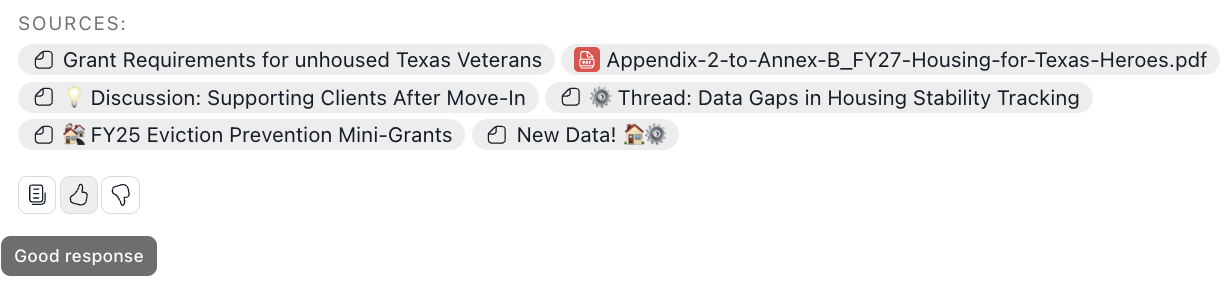
When a response finishes, you'll see these buttons below it:
- Save as Document: Turn the response into a Roundtable Document (see below)
- Copy response: Copy the response to paste somewhere else
While a response is still generating, the send button in the prompt box turns into a stop button. Click it to stop the response, for example if you want to reword your question.
To read the files an answer cited, click a resource under Sources to open it in the resource viewer, then use the next and previous arrows to step through the other cited resources.
Follow-up questions
Below each response, AI Answers suggests a few related follow-up questions. Click one to put it in the prompt box, edit it if you like, and send it. You can also type your own follow-up in the same thread.
Save a response as a Document
Click Save as Document below a response to turn it into an editable Roundtable Document. This is handy when you're using AI Answers to draft a memo, letter, FAQ, or action plan from past discussions.
The new document opens right away. It starts with the response text and its citations, and its title is generated from your question and the response. You own the document and normal Document permissions apply, so share it when you're ready. See Documents.
When AI Answers doesn't know
If AI Answers can't find an answer in your content, it may show a Post a question link below its response. Click it to open a new post with a title and body drafted from your question. The post starts out set to the spaces selected in the spaces selector, and you can change them. Edit the draft as needed, then post it.
Is AI Answers the same for everyone?
Not always. AI Answers only uses content you have permission to see, so its answers depend on which spaces you belong to and which documents and forms are shared with you. Two people who ask the same question can get answers drawn from different content. Answers can also vary with how a question is worded and with the context in your profile.
Privacy and security
- Access controls — AI Answers only surfaces content you already have permission to see.
- Data isolation — your space's content is never shared externally and is never mixed with another organization's content.
- Connected websites are read-only and public — a connected website is a site your Space Managers chose to make searchable. Roundtable reads publicly accessible pages from it. Nothing from your space is sent to that website.
- Secure processing — all data is handled in encrypted environments with strict access controls, running on AWS infrastructure consistent with our GovCloud environment.
See Our Approach to AI at Roundtable for the principles behind Roundtable's AI features.
Conversation history
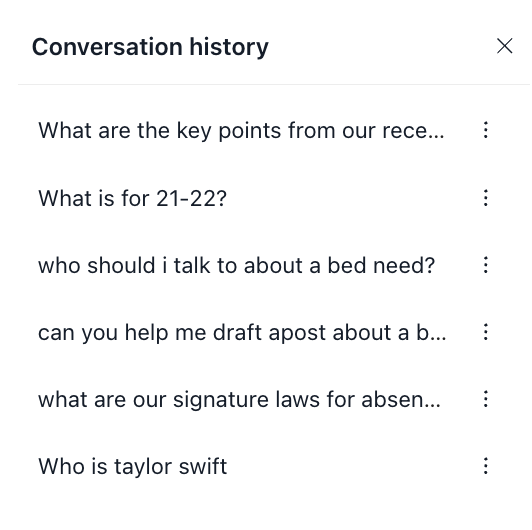
You can review your previous AI conversations at any time. Your conversation history is private to you — it can't be viewed by other members or admins.
Space Managers can see totals for their space on the AI Usage tab in Analytics, such as how many threads were started and which content is cited most. They can't see your questions.
Scheduled prompts
Ask AI Answers a question once and have it run for you automatically on a schedule. Each run writes a fresh answer in a new thread, so the latest on a topic is waiting for you without retyping the question.
Scheduled prompts work well for questions you keep coming back to, such as:
- "What new activity has there been on [project] in the last day?"
- "What are the open action items from this week's meetings?"
- "What concerns have members raised about [topic] this week?"
Create a scheduled prompt
On the AI Answers page, click the View scheduled prompts icon (two circular arrows) in the upper right. The Scheduled prompts panel lists your prompts. Click New scheduled prompt to set up a new one.
RT Tip: Pick a time just before you'll want to read the answer. A prompt set for 8 AM is ready when your day starts.
What happens on each run
Every run creates a new AI Answers thread, so earlier answers stay put and you can look back through them. When a run finishes, you get an email and an in-app notification. Open the thread to read the answer. It works like any other AI Answers thread, so you can ask follow-up questions.
RT Tip: Be specific about the topic and match the timeframe to the schedule. "Summarize new activity on the flood response plan this week" works better than "What's new?" for a weekly prompt.
Manage your scheduled prompts
The Scheduled prompts panel lists all of your scheduled prompts. Each prompt shows its name, the prompt text, an Active status badge, and its schedule, for example "Weekly, Mon 9:00 AM, Central Time (CT)". Each prompt also has a three-dot menu with Edit, Run a test, and Delete.
RT Tip: Like any AI Answers thread, a scheduled prompt only surfaces content you have permission to see.
Prompts to try with AI Answers
Not sure where to start? These prompts work across teams and topic areas — just swap in your own context!
|
Catch up quickly: Get up to speed on a topic or project
"What decisions have been made about [topic] so far?"
|
Prep for a meeting: Summarize what your group discussed last time
"What did we cover in our last meeting on [topic]?"
|
|
Surface buried info: Find answers across multiple resources at once
"What guidance exists in our space about [policy or process]?"
|
Onboard faster: Get oriented when you're new to a space or project
"What are the main priorities or goals this group is working on?"
|
|
Consolidate feedback: Gather input from across discussions in one place
"What concerns or suggestions have members raised about [topic]?"
|
Review past events: Get a recap without hunting through notes
"What were the key takeaways from [event name or type]?"
|
|
Coordinate across teams: Find out who's working on what
"Who in this space has been involved in work related to [topic]?"
|
Track progress: Check in on where things stand
"What's the current status of [initiative or project]?"
|
Providing feedback
AI Answers may not always reflect the most complete or current information. Generated responses can occasionally contain errors, especially with complex or ambiguous content.
It's weakest on questions about dates and time periods, like "the latest guidance," "this year," or upcoming deadlines. Double-check any date or timeframe in an answer against the source it cites.
Your feedback helps improve it for everyone:
- Quick rating — use the thumbs up/down buttons on any response
- Detailed feedback — add specific comments about what worked or didn't
- Report concerns — for urgent issues or inaccurate information, reach out to support@civicroundtable.com
Troubleshooting
- AI Answers can't find content I know exists: It may occasionally miss relevant information. Try rephrasing your question, or type @ to point it at the item (see @mention specific content). Archived resources aren't used. Contact support if the issue persists.
- I want to turn off AI Answers for myself or my members: There are situations where AI use may not be appropriate. Reach out to support@civicroundtable.com and we'll help.